
Have you ever turned on your laptop only to realize you forgot your password? It’s a frustrating moment—especially when all your important files, photos, and projects are locked inside. The good news? You can perform a Laptop Password Reset without losing your data. Whether you forgot your laptop password or need to reset your admin password, there are safe and easy ways to get back in without wiping your system. In this guide, you’ll learn step-by-step methods to reset your password while keeping your files and settings intact. Let’s dive into the easiest and most reliable solutions.
1. Why a Laptop Password Reset Is Important
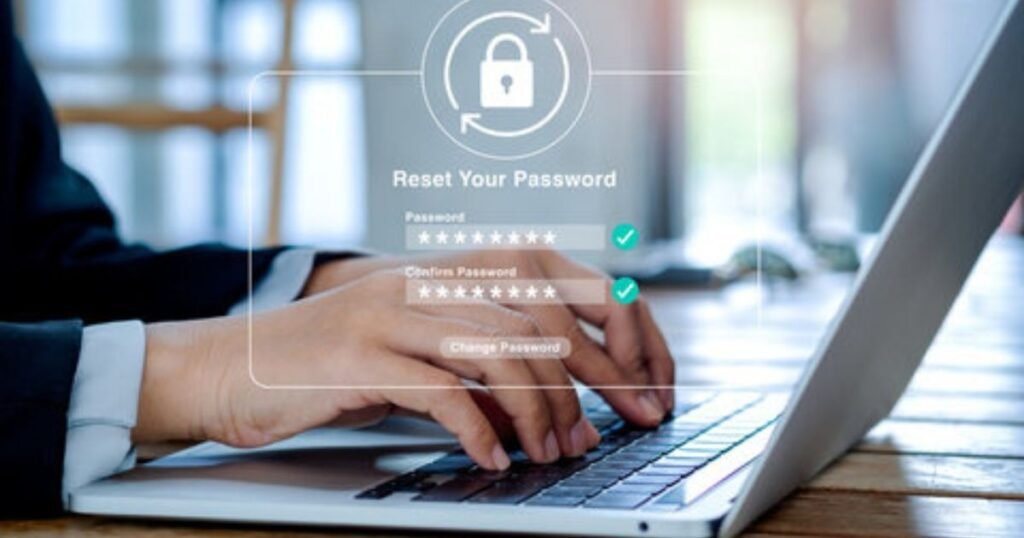
Passwords protect your personal data from unauthorized access. However, when you forget them, a Laptop Password Reset becomes necessary to regain access. Many users make the mistake of reinstalling Windows or using factory resets, which leads to permanent data loss. Instead, knowing how to reset your password properly helps you protect both your security and your valuable information.
2. Common Reasons for Password Issues
Before resetting your password, it’s useful to understand why such problems occur:
- Forgetting the password after long inactivity.
- Typing errors due to caps lock or keyboard settings.
- Windows or system updates resetting login settings.
- Lost or corrupted administrator credentials.
Identifying the cause helps you choose the right Laptop Password Reset method and avoid repeating the issue in the future.
3. Using the Password Reset Disk
If you created a password reset disk earlier, you’re in luck. It’s one of the easiest and safest methods.
Process
- Insert your password reset disk into the laptop.
- Click “Reset Password” on the login screen.
- Follow the on-screen instructions to create a new password.
Tip: Always store your reset disk securely—it’s the most reliable backup for future password issues.
4. Reset Through Another Administrator Account

If your laptop has multiple accounts, you can reset the password through another admin profile.
Procedure
- Log into a second administrator account.
- Open Control Panel → User Accounts → Manage another account.
- Select the locked account and choose Change the password.
- Set a new password and restart your device.
This method works best when you’ve forgotten your laptop password but still have admin access elsewhere.
5. Laptop Passwords Reset via Microsoft Account
If you use a Microsoft account to log in, you can reset it online.
Method
- Go to the Microsoft Password Reset page.
- Select Forgot password? and follow the instructions.
- Verify your identity using your registered email or phone.
- Set a new password and restart your laptop.
This approach is great for Windows 10 and 11 users, as it syncs your password securely across all devices.
6. Using Command Prompt in Safe Mode
This approach is perfect in case you wish to perform a password reset of the admin account manually by means of Windows native tools.
Guide
- Restart your laptop and press F8 or Shift + F8 to enter Safe Mode.
- Select Troubleshoot → Advanced Options → Command Prompt.
Type:
net user username new password
- Replace username with your account name and new password with your new password.
- Restart your laptop and log in.
This method is powerful but should be used carefully to avoid accidental system errors.
7. Using Windows Password Recovery Tools

There are many professional tools equipped with features that help in password recovery or reset without causing any damage to the data.
Popular Tools Include:
- PassFab 4WinKey
- iSunshare Windows Password Genius
- PCUnlocker
These tools work by creating a bootable USB drive that helps you reset your password safely. Always download from official sources to avoid malware.
8. Resetting Password via Local User Settings
In the case of local accounts, it is possible to change the password through a built-in option provided by Windows in the event that the old one is still known.
Approach
- Open Settings → Accounts → Sign-in options.
- Choose Password → Change.
- Enter your current password and set a new one.
Although this method requires remembering your previous password, it’s quick and effective when you still have partial access.
9. Method 7: Using Windows Recovery Environment (WinRE)
If you can’t access your system normally, WinRE offers another route.
Pathway
- Restart your laptop and interrupt the boot process three times to enter WinRE.
- Go to Troubleshoot → Advanced Options → Command Prompt.
- Use the net user command as explained in the Safe Mode method.
WinRE is a built-in recovery environment that helps you manage system issues without reinstalling Windows or losing files.
10. Use a Password Reset Through Security Questions
Simply in the case where security questions are already set for your local Windows account, you can reset the password in an easy manner.
Roadmap
- At the login screen, click I forgot my password.
- Answer your security questions correctly.
- Create a new password and log back in.
This method ensures you regain access quickly and safely without affecting your personal files.
11. How to Prevent Future Password Loss
Once you’ve completed your Laptop Password Reset, take steps Instructions to avoid getting locked out again:
- Use a password manager to store credentials securely.
- Enable password recovery options like backup emails or phone numbers.
- Create a password reset disk immediately after setting a new password.
- Keep system recovery tools handy for emergencies.
Following these habits saves time and prevents unnecessary stress.
12. Laptop Password Reset Without Data Loss – Safety Tips

Here’s how to ensure your files remain safe while performing a password reset:
- Don’t perform a factory reset if you still have other options.
- Make sure to save your data frequently with the help of an external hard drive or a cloud storage service.
- It is a good practice to always double-check the legitimacy of recovery tools before getting them.
- If you are not certain, it is better to have a technician look at it rather than doing it yourself.
By following these safety measures, you will be able to reset your laptop password in peace, knowing that your important files are safe.
Conclusion
It is a serious matter when you forget the password of your laptop, but you have seen that there are many ways which are safe and can be trusted through which you can reset your password without losing your data. Whichever method you opt for, be it the use of your Microsoft account, Command Prompt, or a third-party recovery tool, the result is that your files will be left untouched. The main thing for success in Laptop Password Reset is readiness – having recovery options set up and making backups in advance.
By employing the correct strategy, you will be able to get back access to your account quickly, keep your data safe, and prevent locking yourself out in the future. So, when you are not able to get in next time, think that it is not the end of the world — you are just a few wise steps away from being able to log in again securely. Also, if your device is giving display issues, you can check this guide on how to save money on laptop screen repair to keep your laptop running smoothly.
FAQs
What are the safest means to reset a laptop password?
Without losing any data, the safest method for a Laptop Passwords Reset is by using a Microsoft account or a password reset disk.
Can a laptop password be changed without admin access?
Yes, it can be done via Safe Mode or by using recovery tools like PassFab or PCUnlocker.
If I reset my password, will my files be deleted?
No, the methods that are mentioned here keep the files and user settings while the user is able to regain access.
What if I forgot my laptop password besides the security questions?
It is always possible to use a Microsoft account or a bootable password recovery tool for a safe operation.
How can I prevent forgetting my password again?
If you use a password manager or simply write it down and keep it in a safe place, you will not be locked out again.